Assembling Configurator Architecture
This information is for developers who want to assemble the different Configurator components as they are structured in the Unity Editor. Getting familiar with the Configurator architecture is useful if you need to better understand the technical details of how the components work together.
Forma is designed to help creators set up Configurators more quickly using a simplified interface (the Forma interface). Building a Configurator in the Unity Editor by assembling the hierarchy manually is more time consuming, but useful to developers who need to support creators in Forma.
Creating a Configurator
To create a Configurator, follow these steps:
- In the Editor, add an empty GameObject to your Scene and name it Configurator.
- Add a Configurator component to the GameObject.
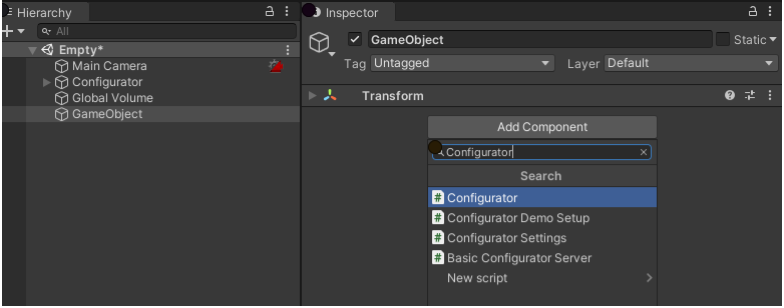
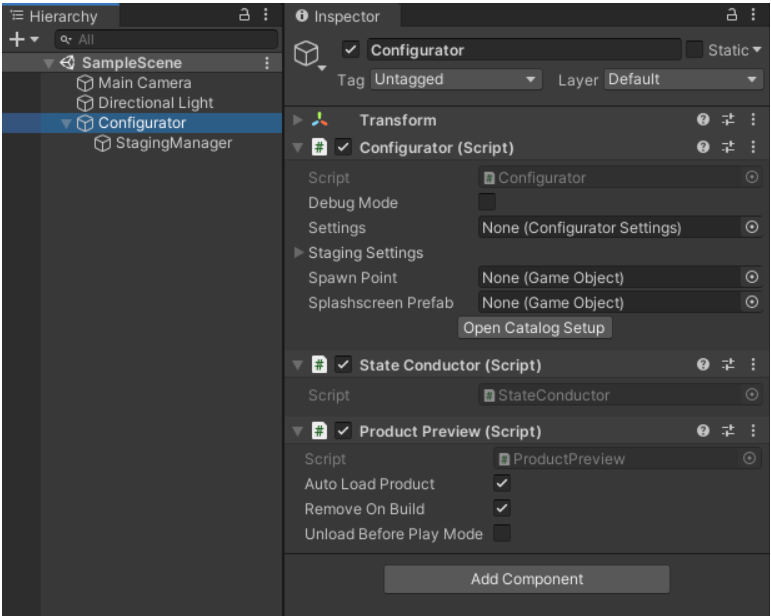
When you add a Configurator component to the GameObject, the following are also added by default:- a State Conductor component
- a Product Preview component
- a StagingManager GameObject (as a direct child) that contains a StagingManager component.
Creating Configurator Settings
To create Configurator settings, follow these steps:
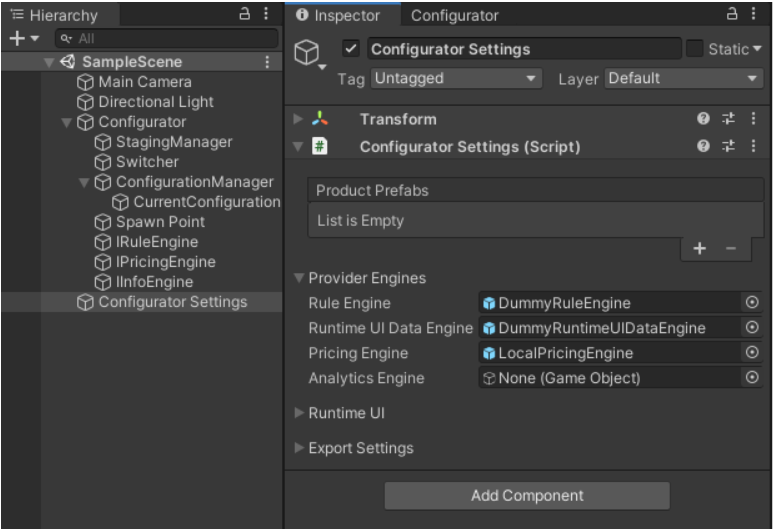
- Add a Configurator Settings component to the Configurator GameObject.
Note: By default, Provider Engine properties in the Configurator Settings component contain default values or links to Prefabs with default Provider Engines. - In the Configurator component, select Configurator > Settings to create a link to the Configurator Settings component.
Creating a link to the Configurator Settings component automatically links the Spawn Point property of the Configurator GameObject to the SpawnPoint GameObject. It also adds the following child GameObjects to the Configurator GameObject:- Switcher: contains a Switcher component
- ConfigurationManager: contains a ConfigurationManager component and the following child GameObject:
- CurrentConifguration: contains a CurrentConfiguration component.
- Spawn Point
- IRuleEngine: contains a component that the Provider Engines property references under the Configurator Setings GameObject.
- IPricingEngine: contains a component that the Provider Engines property references under the Configurator Setings GameObject.
- IInfoEngine: contains a component that the Provider Engines property references under the Configurator Setings GameObject.
Creating a Product that is compatible with the Configurator
To create a product that will be compatible with Forma, follow these steps:
- Add an empty GameObject and give it a recognizable name. For example, Configurable Product.
- Add your Product Prefab (the Prefab that includes your CAD model) as a child of the Configurable Product GameObject.
- Add a Product component ot the Configurable Product GameObject.
Adding the Product component to the Configurable Product GameObject automatically creates the following child GameObjects (To see all the child GameObjects, you must select Debug Mode.):- Variant Table: contains the Variant Table component.
- ContextCollection: contains a ContextCollection component and the following child GameObject:
- Context: contains a Context component.
- Spawn Point
- Presets
- Defaults
- Select the Create Default button.
The system automatically creates the DefaultConfiguration GameObject. - To create a Prefab using the new DefaultConfiguration GameObject, select and drag it to a location in your Project view. For example, drag it to the Assets folder.
- Remove the Configurable Product Prefab from your current Scene.
- To make the Configurable Product Prefab into an Addressable asset, select the Prefab and then, in the Inspector, select Addressable.
Instantiating the Product
- Select the Configurator GameObject.
- In the Inspector, go to Configurator Settings > Product Prefabs and select +.
Element 0 appears in the list. - Link the new Element 0 to the Configurable Product Prefab.
The system instantiates the Configurable Product Prefab in your current Scene under Configurator > Spawn Point > Product Spawn Point.