Introduction to the Game State Machine sample
About the sample
The Game State Machine sample showcases the process of creating a Unity Graph Toolkit state machine tool, and converting the states you author into a runtime state machine that drives a game.
This sample is a basic state machine tool that models the top-level flow of a game — splash, title, countdown, playing, paused, game over — and drives a small endless runner game with it. It shows you how to use Graph Toolkit to:
- Declare state types that handle different behaviours
- Declare state options on a state, and read their values when you import the state machine
- Build a custom runtime asset from a state machine asset using a Scripted Importer, converting each state into a serializable runtime state
- Write custom conditions for transition rules
- Turn the state machine editor into a debugger while in play mode using the graph visualization API
Note
This sample is intended as a learning resource and is not designed to function as a fully-featured game flow system. Certain architectural decisions were made to keep the sample simple and focused on demonstrating key concepts.
About the Game State Machine tool
With the Game State Machine, you can use a state machine to drive the flow of a game.
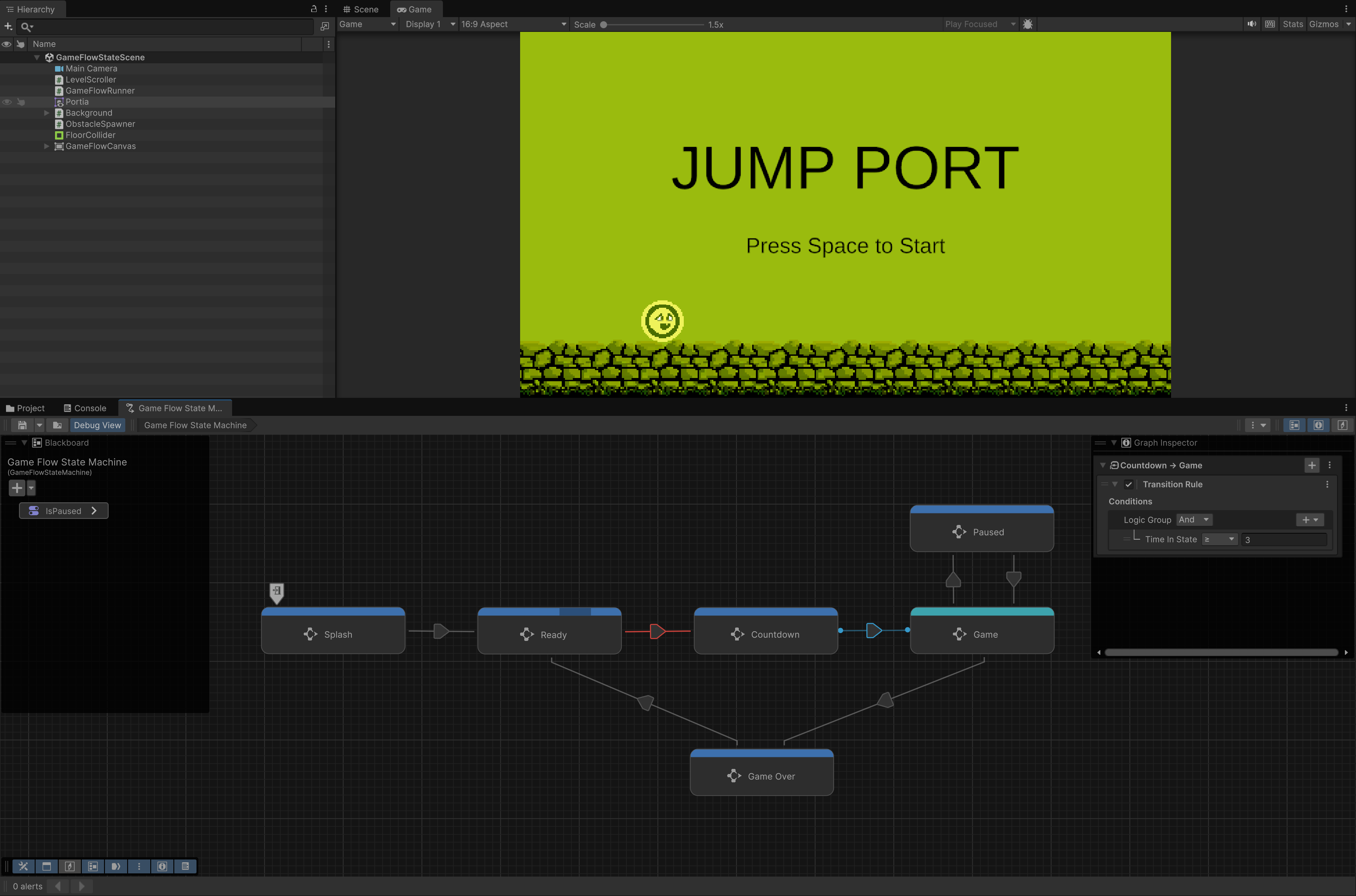
Every state type derives from the abstract GameState class, and each one has a matching runtime class derived from RuntimeGameState. When the state machine is imported, each state creates its runtime counterpart through GameState.CreateRuntimeState, copying the values of its state options into it.
Note
A state option appears in the graph inspector when you select the state. Unlike a node option, it is never drawn on the state in the graph view.
The tool contains six state types:
- Splash - Shows the splash screen.
- Ready - Shows the title screen and raises a game signal when the player presses start.
- Countdown - Shows the countdown. The length of the countdown is set through the
Time In Statecondition on its outward transition. - Main Game - Runs the game, tracks the player's score and raises a game signal when the player dies.
- Pause - Sets
Time.timeScaleto zero while the state is active and restores it when exited. - Game Over - Shows the game over screen and waits for a press to send the machine back to the ready state.
RuntimeGameState is an abstract serializable class with three virtual methods:
OnEnter- Called once when the machine enters the state.OnUpdate- Called every frame while the state is active, before the state's transitions are evaluated.OnExit- Called once when the machine leaves the state.
The tool also includes two custom conditions:
- Game Signal - Triggered when gameplay code raises a given signal during the current frame through
GameFlowRunner.RaiseSignal. - Time In State - Compares how long the current state has been active against a number of seconds. Used for instance by the splash screen to transition automatically to the ready state without user input.
Graph Toolkit has no built-in API for indicating the entry point of a state machine. The sample uses instead a custom Entry self transition. This self transition is only a marker and any rules on it are ignored.
The tool also includes an example custom runtime. It includes a ScriptableObject named GameFlowRuntimeStateMachine that contains the runtime data and a GameFlowRunner component that's responsible for executing it. While the game plays, the sample also draws the state of the runtime state machine back onto the state machine editor using the graph visualization API so you can see which state is active and why a transition did or did not fire during playmode.
The general end-user flow of the tool is as follows:
- The user creates a new game flow state machine asset, and creates a state of the appropriate type for each phase of the game.
- The user selects each state and sets its options in the graph inspector.
- The user adds an
Entrytransition onto the state the game starts in, and connects the rest of the states with transitions carrying conditions. - The user saves the state machine. This builds the runtime asset (on import) as a sub asset that exists inside the authoring state machine's asset.
- The user drags the state machine asset onto a
GameFlowRunnercomponent in the scene.
Some ideas for extending this sample and getting more familiar with Graph Toolkit:
- Write a
GameStateandRuntimeGameStatepair that loads a scene on enter and unloads it on exit. - Add an option to the Pause state, for instance a
boolthat decides whether the game audio is muted while paused. - Split the Game Over state into Win and Lose states triggered based on the player's score.