Binary debugging
The output data of various baking systems is optimized for runtime usage. This data is stored inside binary files located in the [Project root folder]/Library/Artifacts folder.
You can use the contents of these binary files for debugging purposes. This section demonstrates how to see what has changed between baking operations by comparing two such files.
Prerequisites
Download and install the ImHex binary editor. Note: ImHex is not supported or developed by Unity.
Add the following scripting define symbol to the Unity project:
UNITY_DOTS_IMHEX. For information on how to do that, refer to the Custom scripting symbols page.
Inspect a subscene
To inspect the binary artifacts of a subscene, follow these steps:
Open a subscene you intend to inspect to trigger the baking operation.
Once the baking has completed, the console should display a message similar to this:
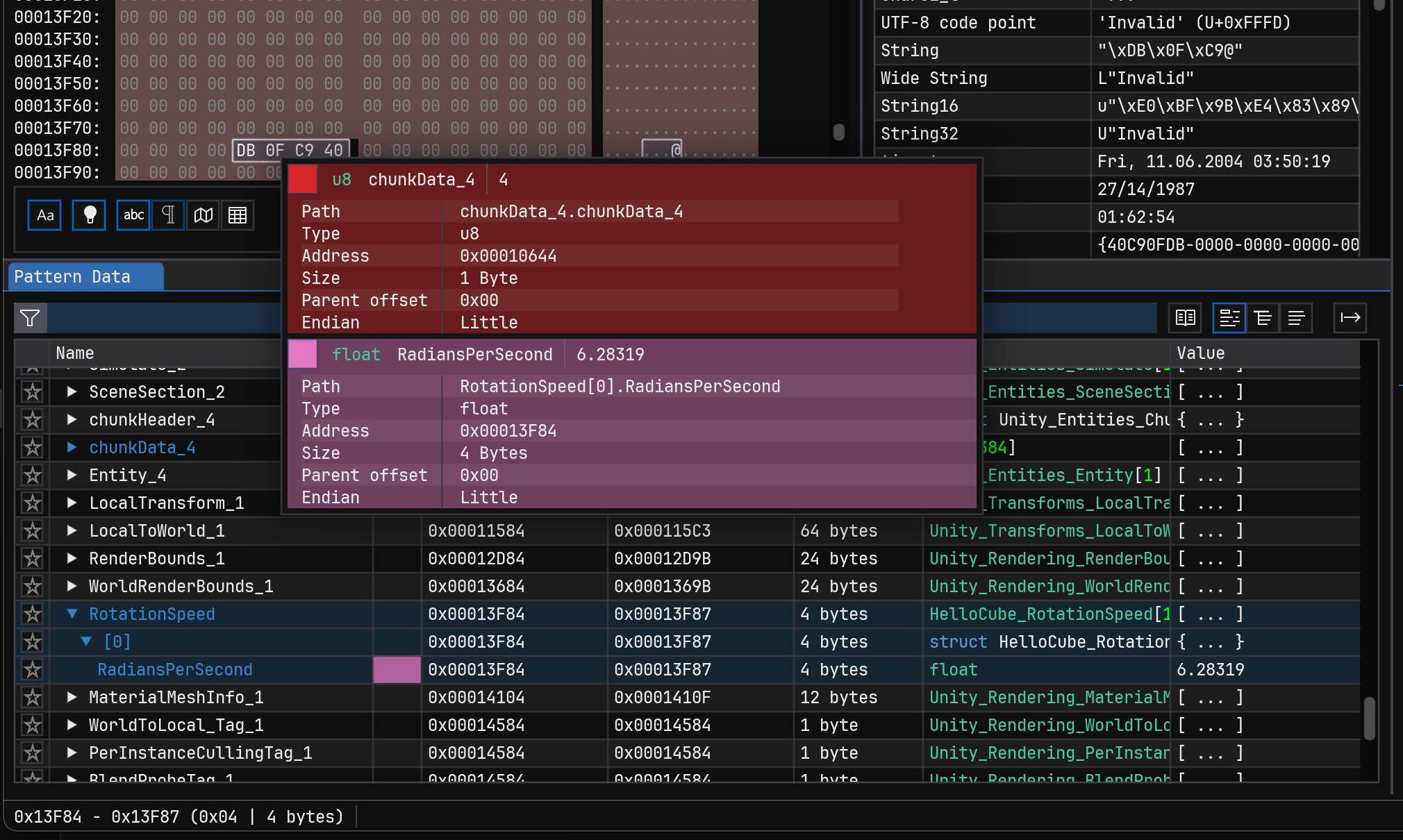
Created an .hexpat file from the recent bake, located at: ./Library/GeneratedImHex/45a2c8428b97e4e48955d9b5114509fe.0.entities.hexpat (Size: 24154 bytes)The
.hexpatfile is a pattern file describing types of data and their locations in a binary file.In the Project window, open the SceneDependencyCache folder, right-click on one of the files in the folder and select View in Import Activity window.
In the Import Activity window, select Options > Show previous imports.
Sort the import activities by Last Import. The most recent import should be the subscene you just opened.
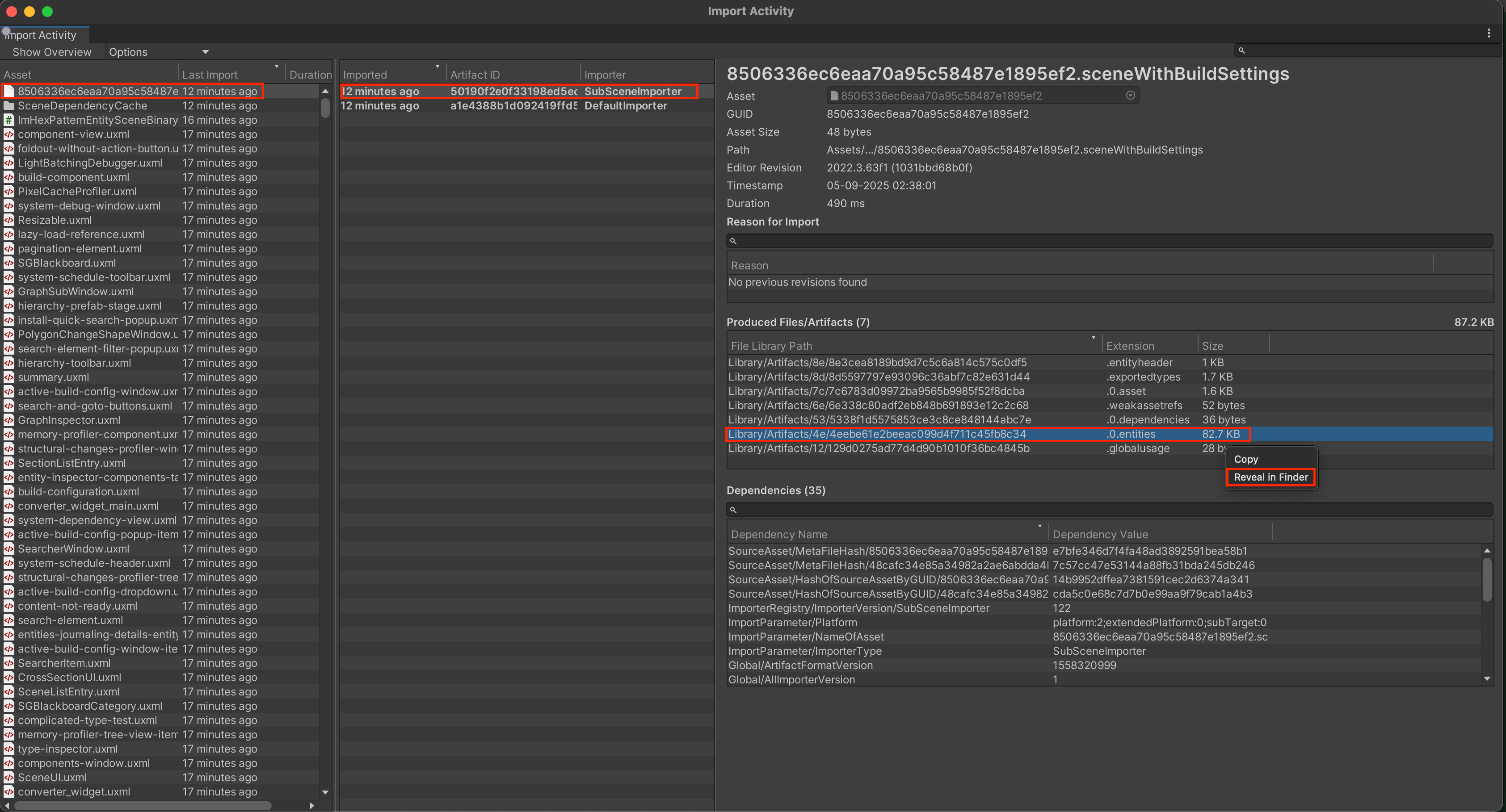
Select the entry which was imported by the SubSceneImporter process. In the right part of the Import Activity window, you should now see the Produced Files/Artifacts section.
Right click on an entry with the extension .0.entities and select Show in Explorer (Windows) or Reveal in Finder (MacOS). The selected file is the binary data file of the subscene.
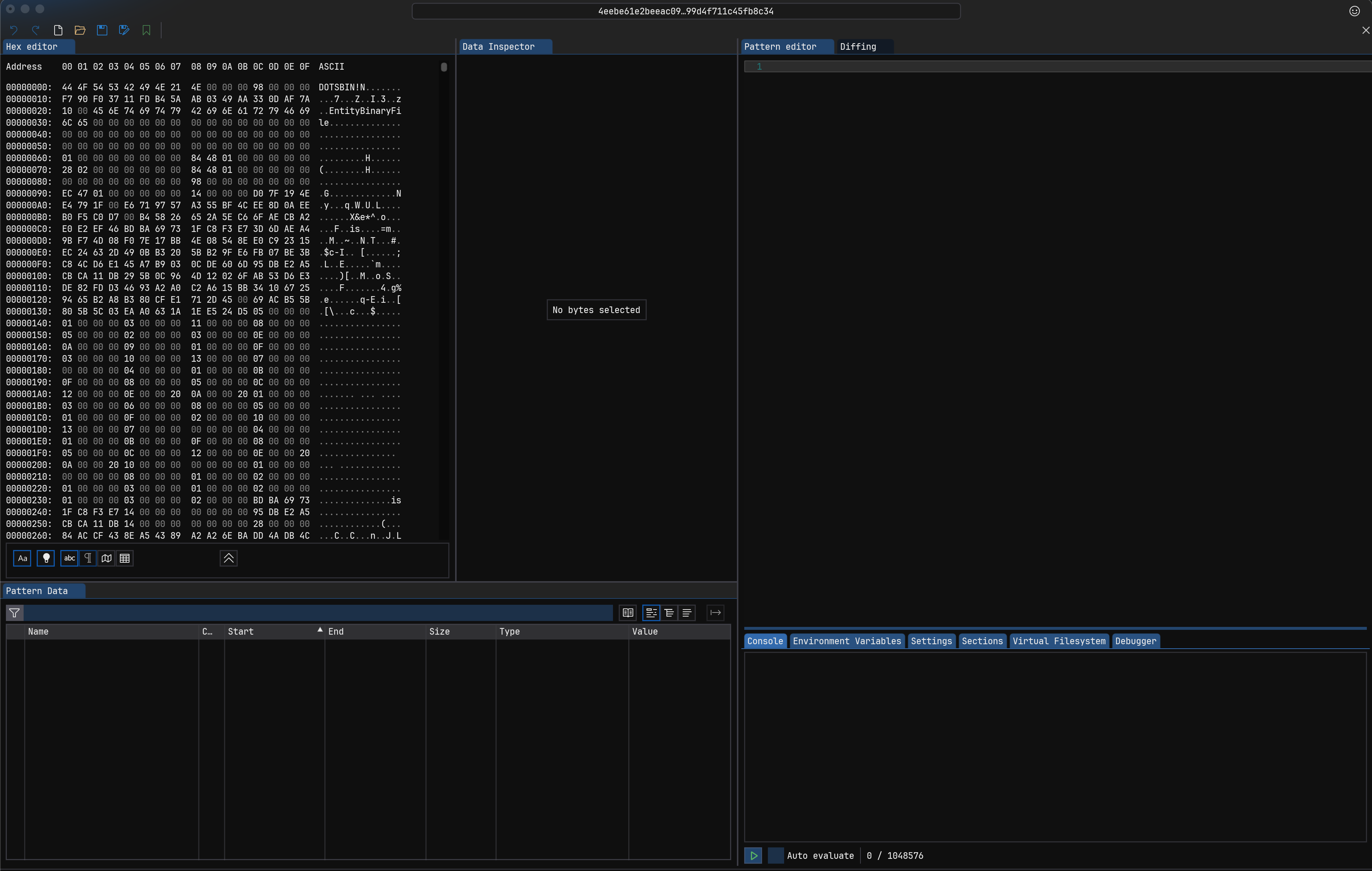
Open the ImHex editor and drag the binary file into it. The editor displays the binary contents of the file.
Navigate to the Library/GeneratedImHex folder. Select the
.hexpatfile with.0.entitiesin the name, and drag and drop it onto the ImHex editor.In ImHex, in the bottom-center part of the window, press the Play button . The editor loads the meta data and you can inspect the binary data.