Upgrade Guides
These guides will help you upgrade your project to use the latest version of glTFast. If you still encounter problems, help us improving this guide and glTFast in general by reaching out by raising an issue.
Upgrade to 5.0
General
The API in general was changed considerably to conform closer to Unity's coding standard and the Microsoft's Framework Design Guidelines. If you have custom code, you likely need to update parts of it to the new API. Some notable items:
- PascalCase on properties (first char is upper-case)
- Removed direct access to fields (replaced by getter-property, where required)
- More consistent naming of assemblies, namespaces, classes, constants, static members, etc.
- Renamed and moved classes/structs to different files.
- Auto-formatted code for consistent line-endings and code look (a necessary, one-time evil; might be troublesome if you forked glTFast)
If you have issues, please also go through the 5.0.0 changelog entry and feel free to reach out for support.
Moved or Renamed Types
Some assemblies, classes, structs and enum types have been renamed or moved. Make sure you adopt your code approriately. All entries are within the GLTFast namespace.
- Refactored Assembly Definitions
glTFastSchemawas merged intoglTFastand thus removedglTFastEditorwas renamed toglTFast.EditorglTFastEditorTestswas renamed toglTFast.Editor.Tests
- Moved logging related code into
GLTFast.Loggingnamespace - Replaced
CollectingLogger.itemwith.Countand.Itemsiterator GameObjectInstantiator.SceneInstanceis nowGameObjectSceneInstanceImportSettings.NameImportMethodis nowNameImportMethod- Converted
GameObjectInstantiator.SettingstoInstantiationSettings InstantiationSettings.SceneObjectCreationis nowSceneObjectCreation- Converted properties that were hiding conversion logic or caching into methods
Accessor:typeEnumtoGetAttributeType/SetAttributeTypeBufferView:modeEnumtoGetModeBufferView:filterEnumtoGetFilterAnimationChannelTarget:pathEnumtoGetPathAnimationSampler:interpolationEnumtoGetInterpolationTypeCamera:typeEnumtoGetCameraType/SetCameraTypeLightPunctual:typeEnumtoGetLightType/SetLightTypeMaterial:alphaModeEnumtoGetAlphaMode/SetAlphaMode
HttpHeader's properties are readonly now. A constructor was added as compensation.- Obsolete code that was finally removed
GltfImport.Destroy(was renamed toGltfImport.Dispose)GLTFast.GltFast(was renamed toGltfImport)GltfImport.InstantiateGltf(was replaced byInstantiateMainSceneandInstantiateScene)
Async Scene Instantiation
The addition of GltfImport.InstantiateSceneAsync and GltfImport.InstantiateMainSceneAsync now provides an asynchronos way of instantiating glTF scenes. For large scenes this means that the instantiation can be spread over multiple frames, resulting in a smoother frame rate.
The existing, synchronos instantiation methods GltfImport.InstantiateScene and GltfImport.InstantiateMainScene (including overloads) have been marked obsolete and will be removed eventually. Though they still work, it's recommended to update your code to use the async variants.
Since loading a glTF (the step before instantiation) has been async before, chances are high your enclosing method is already async, as it should be.
async void Start() {
    var gltf = new GltfImport();
    var success = await gltf.Load("file:///path/to/file.gltf");
    if(!success) return;

    // Old, sync instantiation
    success = gltf.InstantiateMainScene(transform);
    if(success) Debug.Log("glTF instantiated successfully!");
}
All you now have to do is switch to the async method and await it.
async void Start() {
    var gltf = new GltfImport();
    var success = await gltf.Load("file:///path/to/file.gltf");
    if(!success) return;

    // New, async instantiation
    success = await gltf.InstantiateMainSceneAsync(transform);
    if(success) Debug.Log("glTF instantiated successfully!");
}
IInstantiator Changes
IInstantiator.BeginScene signature dropped third parameter AnimationClip[] animationClips. As replacement IInstantiator.AddAnimation was added. It's only available when built-in Animation module is enabled.
Texture Support
The built-in packages Unity Web Request Texture and Image Conversion provide support for PNG/Jpeg texture import and export. They are not a hard requirement anymore, so you…
- …can disable them if you don't require PNG/Jpeg texture support
- …need to enable them in the Package Manager if you require PNG/Jpeg texture support
See Texture Support in Project Setup for details.
Play Animation
Previously the first animation clip would start playing by default, which is not the case anymore. There is a way to restore animation auto-play, depending on how you load glTFs.
Play Automatically with the GltfAsset component
There's a new property Play Automatically, which is checked by default. You shouldn't experience change in behavior, unless you disable this setting.
Play Automatically when loading from script
You have to explicitely use a GameObjectInstantiator. It provides a SceneInstance object which has a legacyAnimation property, referencing the Animation component. Use it to start or stop playback of any of the animation clips it holds.
async void Start() {

    var gltfImport = new GltfImport();
    await gltfImport.Load("test.gltf");
    var instantiator = new GameObjectInstantiator(gltfImport,transform);
    var success = gltfImport.InstantiateMainScene(instantiator);
    if (success) {

        // Get the SceneInstance to access the instance's properties
        var sceneInstance = instantiator.SceneInstance;

        // Play the default (i.e. the first) animation clip
        var legacyAnimation = instantiator.SceneInstance.LegacyAnimation;
        if (legacyAnimation != null) {
            legacyAnimation.Play();
        }
    }
}
IMaterialGenerator API change
Rendering meshes with points topology/draw mode (Point clouds) requires special shaders (with a PSIZE vertex output). For that reason the pointsSupport parameter (bool; optional) was added to
IMaterialGenerator.GetDefaultMaterialIMaterialGenerator.GenerateMaterial
If pointsSupport is true, the generated material has to support meshes with points topology.
The bundled default material generators don't support point cloud rendering yet (with the exception of the built-in unlit shader), but this change will allow implementing that in the future (or in custom implementations).
If a material is used on mesh primitives with different draw modes (e.g. on triangles as well as points), still just one Unity material with points support will be created and used for all of them.
Misc. API Changes
RenderPipelineUtils.DetectRenderPipeline() turned to RenderPipelineUtils.RenderPipeline
Upgrade to 4.5
New shader graphs are used with certain Universal and High Definition render pipeline versions, so projects that included glTFast's shaders have to check and update their included shaders or shader variant collections (see Materials and Shader Variants for details).
Upgrade to 4.x
Coordinate system conversion change
When upgrading from an older version to 4.x or newer the most notable difference is the imported models' orentation. They will appear 180° rotated around the up-axis (Y).
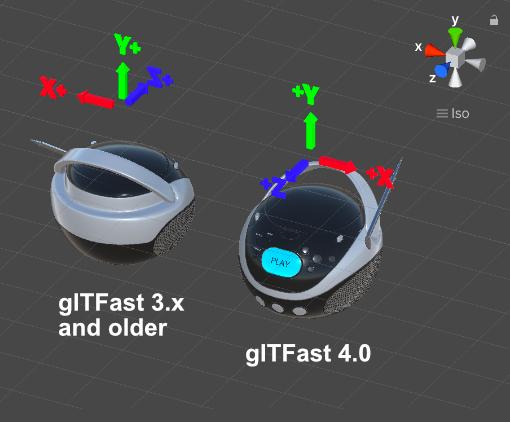
To counter-act this in applications that used older versions of glTFast before, make sure you rotate the parent Transform by 180° around the Y-axis, which brings the model back to where it should be.
This change was implemented to conform more closely to the glTF specification, which says:
The front of a glTF asset faces +Z.
In Unity, the positive Z axis is also defined as forward, so it makes sense to align those and so the coordinate space conversion from glTF's right-handed to Unity's left-handed system is performed by inverting the X-axis (before the Z-axis was inverted).
New Logging
During loading and instantiation, glTFast used to log messages (infos, warnings and errors) directly to Unity's console. The new logging solution allows you to:
- Omit glTFast logging completely to avoid clogging the message log
- Retrieve the logs to process them (e.g. reporting analytics or inform the user properly)
See Logging above.
Scene based instantiation
glTFast 4.0 introduces scene-based instantiation. While most glTF assets contain only one scene they could consist of multiple scenes and optionally have one of declared the default scene.
The old behaviour was, that all of the glTF's content was loaded. The new interface allows you to load the default scene or any scene of choice. If none of the scenes was declared the default scene (by setting the scene property), no objects are instantiated (as defined in the glTF specification).
GltfImport (formerly named GLTFast) provides the following properties and methods for scene instantiation:
// To get the number of scenes
public int sceneCount;
// Returns the default scene's index
public int? defaultSceneIndex;
// Methods for instantiation
public bool InstantiateMainScene( Transform parent );
public bool InstantiateMainScene(IInstantiator instantiator);
public bool InstantiateScene( Transform parent, int sceneIndex = 0);
public bool InstantiateScene( IInstantiator instantiator, int sceneIndex = 0 );
Please look at GltfAsset for a reference implementation and look at the properties'/methods' XML documentation comments in the source code for details.
Custom material generation
Creating a custom IMaterialGenerator was mainly about implementing the following method:
Material GenerateMaterial(Schema.Material gltfMaterial, ref Schema.Texture[] textures, ref Schema.Image[] schemaImages, ref Dictionary<int, Texture2D>[] imageVariants);
You'd receive all textures/images/image variants to pick from. This was changed to:
Material GenerateMaterial(Schema.Material gltfMaterial, IGltfReadable gltf);
IGltfReadable is an interface that allows you to query all loaded textures and much more, allowing more flexible implementations. Please look at the source code.
In the future materials can be created before textures are available/downloaded to speed up the loading.
Legacy documentation
Users of glTFast 1.x can read the documentation for it.