Sample: Integrate Annotations with object picking
You can use this sample to leave annotations in a Unity Cloud scene and synchronize your annotations data with the cloud.
The sample uses annotations that are attached to three dimensional objects.
Note: For the purpose of this sample, three cube will be loaded in place of the selected scene.
Prerequisites
Before you use the Annotations sample, you must have the following:
- Installed Annotations, Identity, and Storage packages
- A valid Unity ID
- A Unity Cloud scene associated with your Unity ID
Note: While the Annotations service doesn't depend on the Identity service, the Identity package is used in the sample to control the authentication flow.
Installation
To install the sample, follow these steps:
- Inside your Unity project window, go to Package Manager > Unity Cloud Annotation.
- Expand the Samples section and select Import next to the Object Picking sample.
After the import process is complete, you can view your imported assets under the Assets/Samples/Unity Cloud Storage folder.
Add annotations to your Unity Cloud scene
The Annotations sample shows you how to create, edit, and delete annotations topics and comments that are attached to three dimensional objects.
Launch the sample
To launch the sample, follow these steps:
- Go to
Assets/Samples/Unity Cloud Annotation/<package-version>/Object Picking/Scenes/ObjectPicking.unityand run the scene. If this is your first time launching the sample, make sure to sign in with your Unity ID account. For more information on creating a Unity Cloud scene, see the Storage package documentation. - Select Launch Scene. The scene retains any annotations previously left on it.
Create topics and comments in the sample
To create a topic and a comment in the sample, follow these steps:
- Click anywhere on any of the three objects in the scene.
- Enter a topic title and select Confirm. You can find your new topic in the topic scroller and your indicator in the scene. You can highlight the indicator by hovering the topic in the scroller.

- Enter a comment in the comment input field.
The topic and comment creation dates are in UTC time.
Edit topics and comments in the sample
To edit a topic and a comment in the sample, follow these steps:
- In an existing topic, go to the Options menu (…).
- Select Edit to edit the topic title.
- In an existing comment, go to the Options menu (…) in the comment box.
- Select Edit to edit the comment text.
Resolve topics in the sample
To resolve topics in the sample, follow these steps:
- In an existing topic, go to the Options menu (…).
- Select Resolve. A green check mark appears to mark the topic as resolved.
- (Optional) To reverse the resolved status of a topic, select Unresolve in the Options menu (…).
Delete topics and comments in the sample
To delete a topic and a comment in the sample, follow these steps:
- In an existing topic, go to the Options menu (…).
- Select Delete to delete the topic. If you delete a topic, all the comments associated with the topic are deleted too.
- In an existing comment, go to the Options menu (…) in the comment box.
- Select Delete to delete the comment.
Main components
This section describes the scripts that make up the main components of the this Annotations sample.
Platform services script
The PlatformServices class initializes and disposes of dependencies required by the AnnotationRepository. You can use this class to manage the Unity Cloud services and dependencies you use in your application.
To open the platform services script, go to your Assets/Samples/Unity Cloud Annotation/<package-version>/Shared/Scripts/PlatformServices.cs file.
The PlatformServices class has two accompanying classes called PlatformServicesInitialization and PlatformServicesShutdown that call the initialization and shutdown methods through Unity's standard Monobehaviour methods Awake(), Start() and OnDestroy().
Login manager script
The LoginManager class lets you sign in and provides the Annotations sample with your Unity Cloud scene ID. For more information on authentication, see the Identity package documentation.
To open the login manager script, go to your Assets/Samples/Unity Cloud Annotation/<package-version>/Shared/Scripts/LoginManager.cs file.
Object picker script
The ObjectPicker class lets you pick the location of your annotation using Unity's raycast and input system.
To open the login manager script, go to your Assets/Samples/Unity Cloud Annotation/<package-version>/ObjectPicking/Scripts/ObjectPicker.cs file.
Annotations sample script
The ObjectPickingSample script inherits from AnnotationSampleBehaviour, a generic class that shows you how to do the following:
- Build and use an
AnnotationRepository - Use a
BaseUIControllerto trigger events for specific user actions (we will be usingObjectPickingUIControllerin this sample) - Create requests for creating, editing, and deleting annotations
- Send requests for creating, editing, and deleting annotations to the repository
The ObjectPickingSample script in itself will show you how to create and highlight AnnotationIndicator objects to locate the annotations in three dimensional space.
To open the Annotations sample script, go to your Assets/Samples/Unity Cloud Annotation/<package-version>/ObjectPicking/Scripts/ObjectPickingSample.cs file.
Shared UI scripts
The UI sample includes a set of UI scripts and prefabs used by annotations. To open Shared UI scripts, go to Assets/Samples/Unity Cloud Annotation/<package-version>/Shared/Scripts/UI.
Go further
This section describes other actions you can perform with the Annotations sample.
Creating annotations with more data
You can include other fields in your annotations such as topic descriptions and camera 3D transform information.
Testing annotation notifications
The Annotations service sends notifications of changes you make to topics and comments to any users working in the same Unity Cloud scene.
To test the notifications, you can do the following:
- Run the sample on two machines using the same Unity Cloud scene.
- Run two instances of the sample locally.
Troubleshooting
This section describes issues you might have while using the Annotations sample.
Invalid Unity scene ID
If you get an invalid Unity scene ID error, make sure you have a valid scene ID in GUID format from the Digital Twin Dashboard.
Missing dependency
If you get a missing dependency error about a specific package, ensure you have installed all the packages listed in the Prerequisites.
Certain materials are broken/magenta
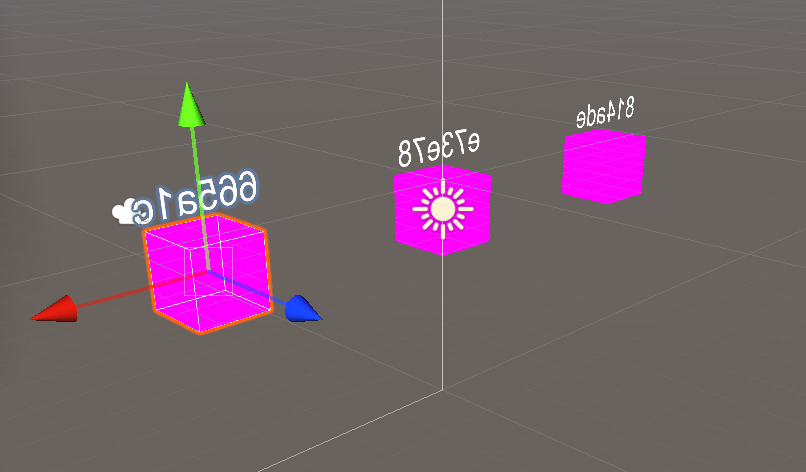
This sample is meant to be used with Unity's Universal Render Pipeline. Ensure your project has URP installed and setup in order to correctly view all materials in this sample.
Alternatively, you can replace the broken materials with any materials valid for your render pipeline.