Recorded Playback
This package enables users to record and play back recordings for UI interactions in a Unity project.
Requirements & Limitations
- Game objects included in recordings must have a unique combination of name and tags in the scene at the time they are interacted with.
- Only touch, click, and drag actions are recorded, we do not yet support keyboard input.
- Native device interactions, such as phone keyboards or purchase confirmations, are not currently supported.
- Only input for Unity UI is supported.
Usage
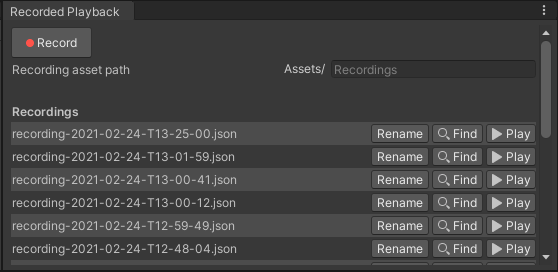
- With your project open in the Unity Editor, open the Recorded Playback window (Automated QA > Recorded Playback...)
- Press "Record" to start recording. Press "Stop" to stop. Your recording will automatically be saved to the project's Assets/Recordings folder.
- Press "Play" to the right of the recording to play back your recording.
Creating Recorded Tests
We recommend creating Recorded Tests from Recorded Playbacks in order to quickly validate the success (or failure) of a recorded playback. Recorded tests can be run in the Editor or on a standalone build: on your dev machine, on a local device, on your build machine, or on an Android phone in a cloud device farm.
See the Recorded Testing Documentation for instructions.
[Advanced] Manually Editing Recordings
Some users may want to manually edit recording files in order to send or receive signals from core game code. For example, to instruct the recording not to begin until the main menu is loaded.
Recorded Playback File Structure
Recordings are saved to the Assets/Recordings folder and named recording-[timestamp].json. Recordings are stored as json files containing a timestamped list of touch data on Game Objects - each defined by its name and tags.
| parameter name | type |
|---|---|
| position | vector 2 |
| eventType | integer, eventType enumeration |
| timeSinceStart | number |
| pointerId | integer |
| waitSignal | string |
| emitSignal | string |
| objectName | string |
| objectTag | string |
| eventType | meaning |
|---|---|
| 0 | non-interaction, used for signals |
| 1 | pointer down |
| 2 | pointer up |
If waitSignal is specified and non-empty, playback halts until the RecordingInputModule is provided the specified signal through the SendSignal(string signal) function (included in RecordingInputModule.cs).
If emitSignal is specified and non-empty, RecordingInputModule will invoke the callback UnityEvent with the provided string parameter.
example file:
{
   "touchData" : [
      {
         "position" : {
            "y" : 0.508287310600281,
            "x" : 0.457231730222702
         },
         "eventType" : 1,
         "timeSinceStart" : 0.582690715789795,
         "pointerId" : -1,
         "waitSignal" : "",
         "emitSignal": "",
         "objectName": "MenuButton",
         "objectTag": "Untagged"
      },
      {
         "waitSignal" : "",
         "pointerId" : -1,
         "position" : {
            "y" : 0.508287310600281,
            "x" : 0.457231730222702
         },
         "timeSinceStart" : 1.04915285110474,
         "eventType" : 2,
         "emitSignal": "",
         "objectName": "MenuButton",
         "objectTag": "Untagged"
      },
      {
         "eventType": 0,
         "timeSinceStart" : 1.05,
         "waitSignal": "continue",
         "emitSignal": ""
      },
      {
         "eventType": 0,
         "timeSinceStart": 5,
         "waitSignal" : "",
         "emitSignal": "done"
      }
   ]
}
VisualFx and Input Feedback during Playback
Events being performed by the Automated QA package will show visual feedback during playback of a recording.
The type of feedback is...
Click
When a click is performed, a ripple effect will appear at the coordinates of the click. This effect will last for only a few moments before fading away. Multiple ripples in a short period will be capped by default at 2. Older ripples will fade more quickly than the newest one.
When holding the mouse button down, a single ring will appear, growing to a partial size and then pausing animation at the hold's coordinates until the click is released. On release, a normal ripple effect will continue animating. If a drag is performed after holding a click, then this "holding" ripple effect will simply disappear at the end of the drag.
Drag
When a drag is performed, a TrailRenderer line appears on screen from a position extending from the start point of the drag to the end point. The trail is increasingly transparent the closer it is to drag origin. So the non-transparent end of the trail indicates drag end coordinates.