Saved Views in the Asset Manager Window
How to save search filters as views
Saving a view
Saved views allow you to store a search filter to your project. To save a view, first populate your search filter with any or all of the following fields:
- Search terms in the search bar
- Search filters
- Sorting options
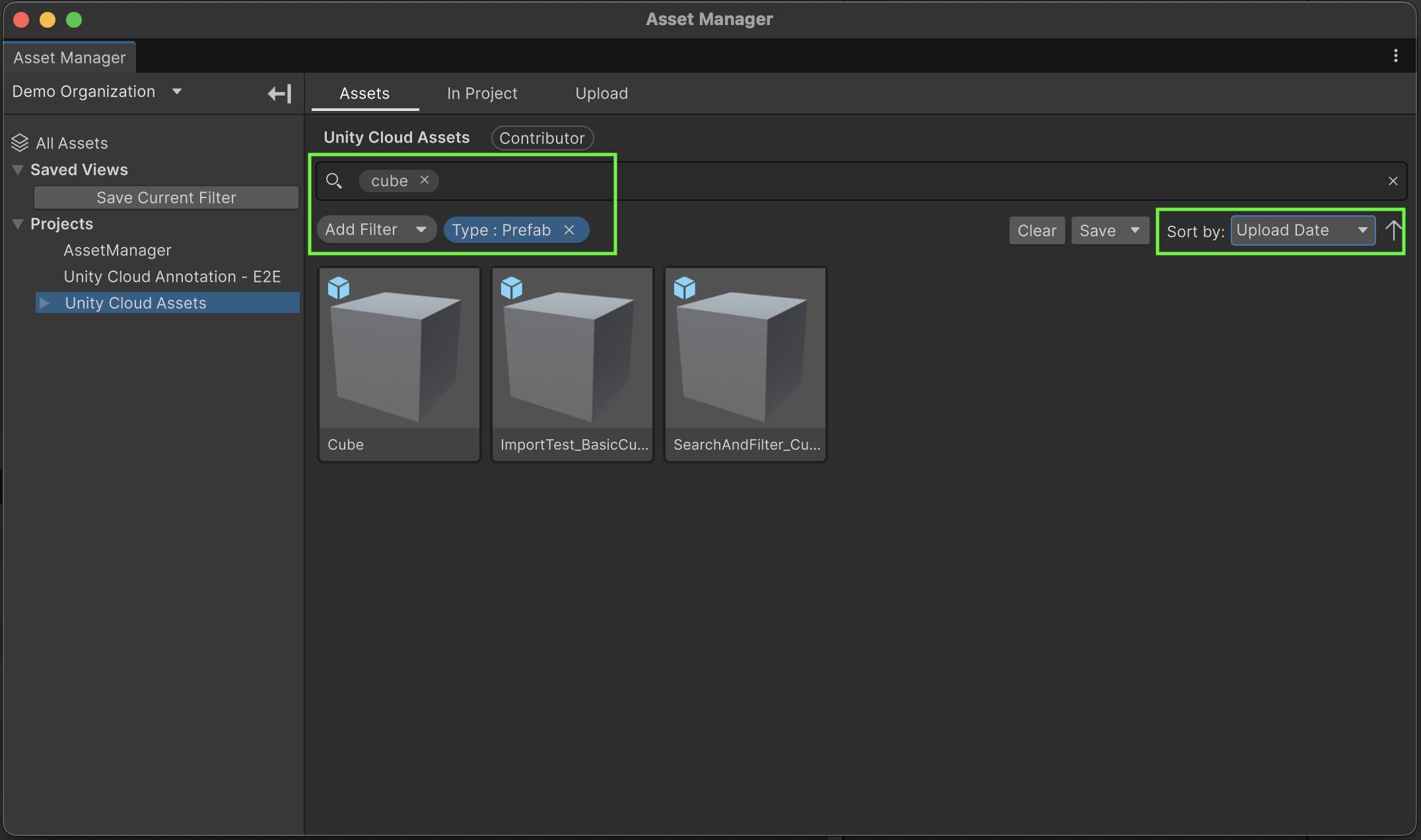
Note: Saved views are only applicable in the Assets tab of the Asset Manager Window.
Saving your first view
Once you have a search filter that you would like to save, you can save the view in one of two ways:
- If you have no existing saved views, you can use the save button present in the Saved Views section in the side bar. Note: this button only appears when no views have been saved.
- Clicking on the Save button under the search bar
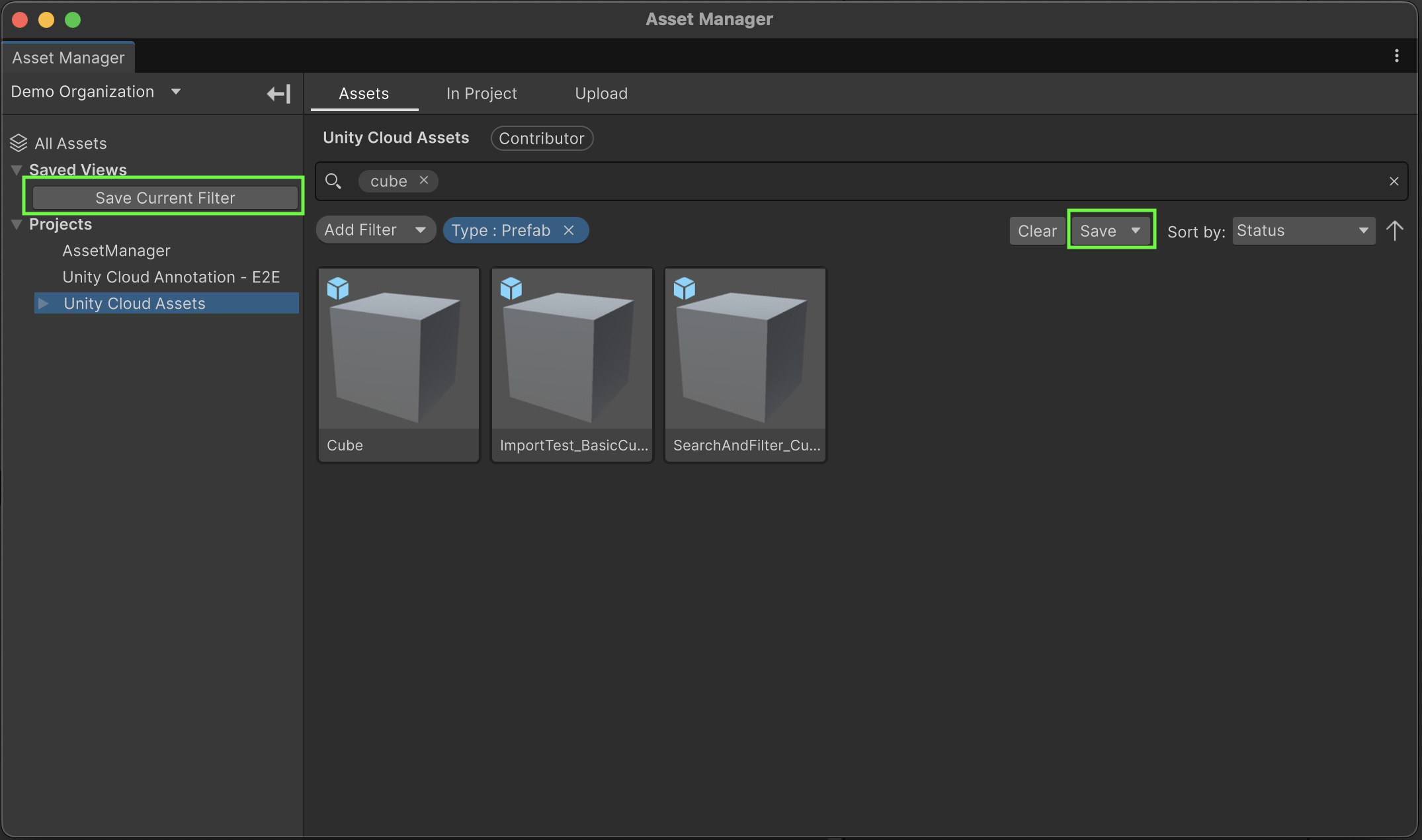
Saving a view will automatically prompt you to name the view in the sidebar.
Saving the current view vs saving as a new view
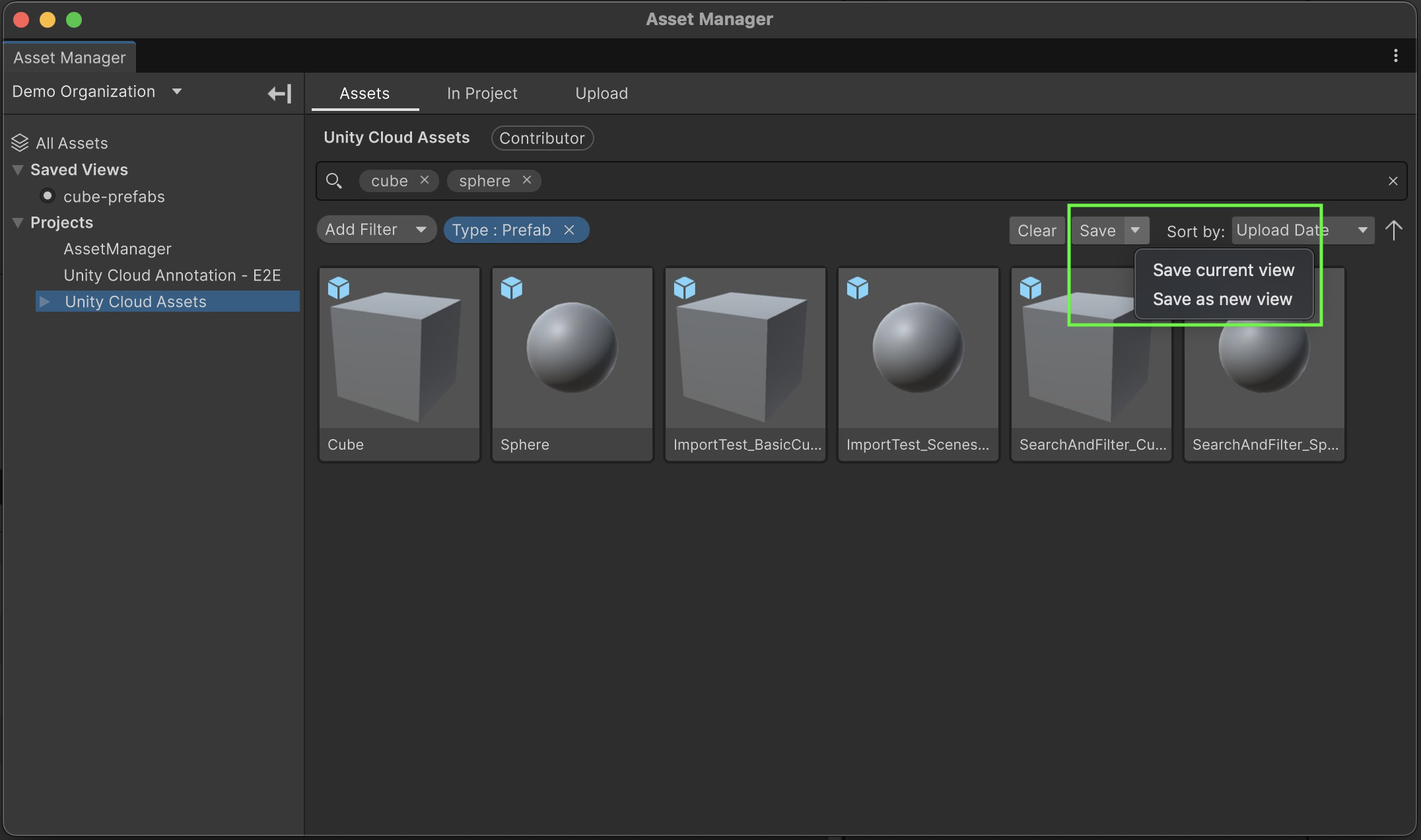
With a saved view selected, clicking on the Save button will save the selected view with the current search filter, overwriting the previously saved filter. If you wish to save the current filter as a new view, you can click on the dropdown arrow on the Save button to view more save options, and select the Save as new view option.
Apply and clear your views
You can apply a chosen view by selecting it in the sidebar under the Saved Views section. This will automatically apply the saved view's search filter to your window. The applied search filter will persist if you change selected project or collection in the sidebar.
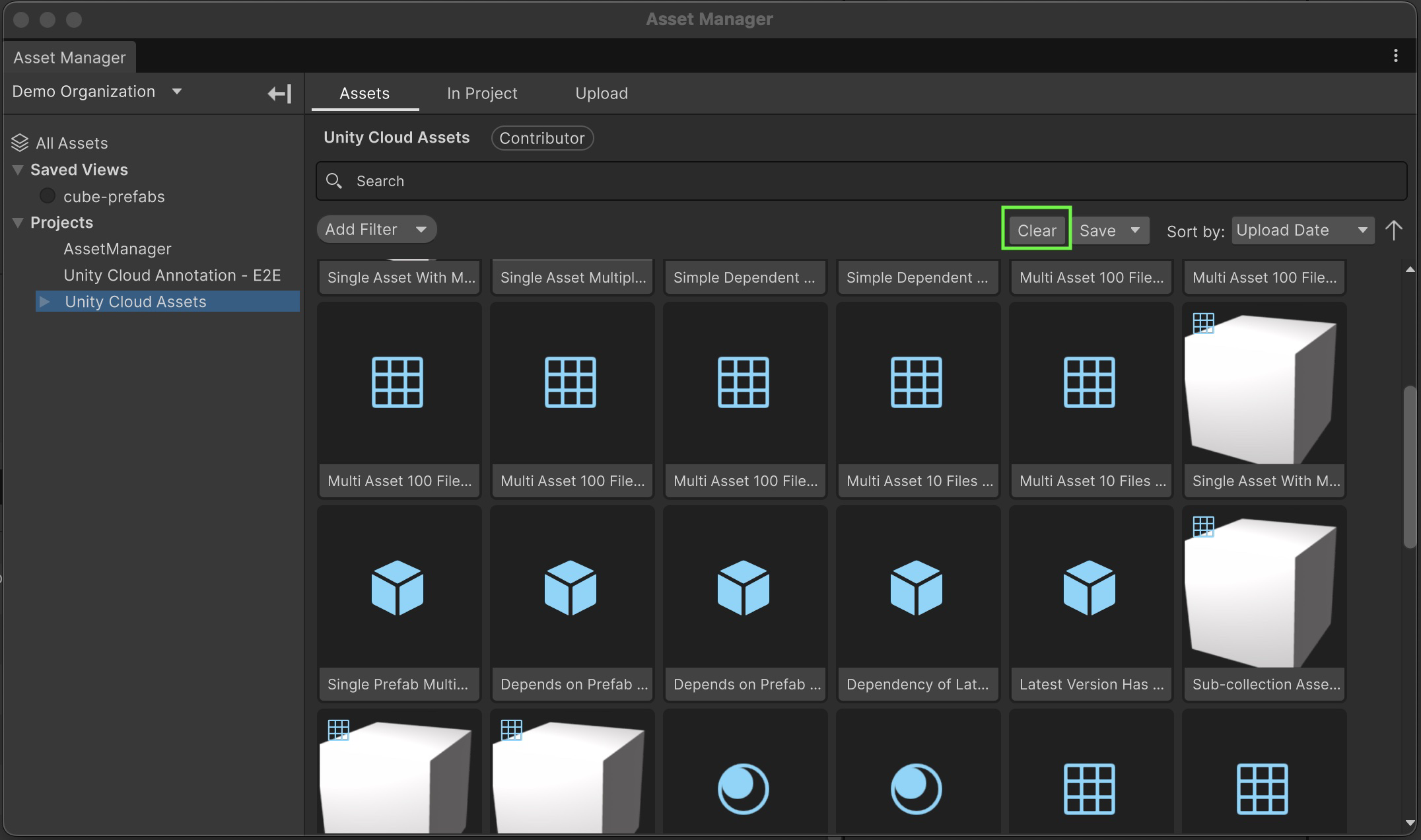
To clear a saved view or the current search filter, you have two options:
- Click on the applied saved view in the sidebar to de-select it and clear the search filter
- Click on the Clear button under the search bar
Renaming a view
If you want to rename a saved view, right-click on the view you wish to rename in the sidebar and select Rename saved view.
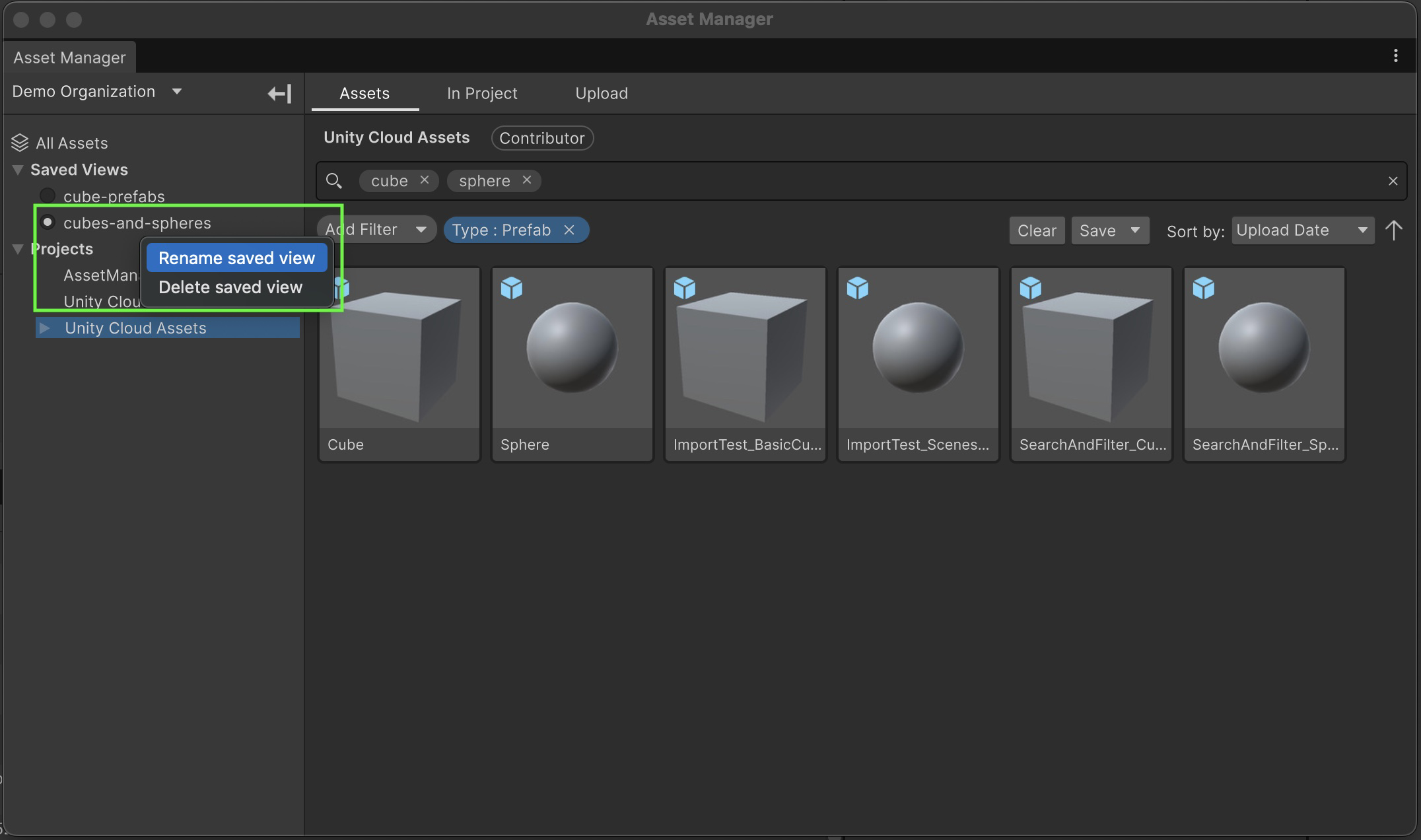
Note: You cannot have two views with the same name. If you attempt to rename a view with a duplicate name, the renaming will not be applied and a warning will be logged to the console.
Deleting a view
If you want to delete a saved view, right-click on the view you wish to delete in the sidebar and select Delete saved view.
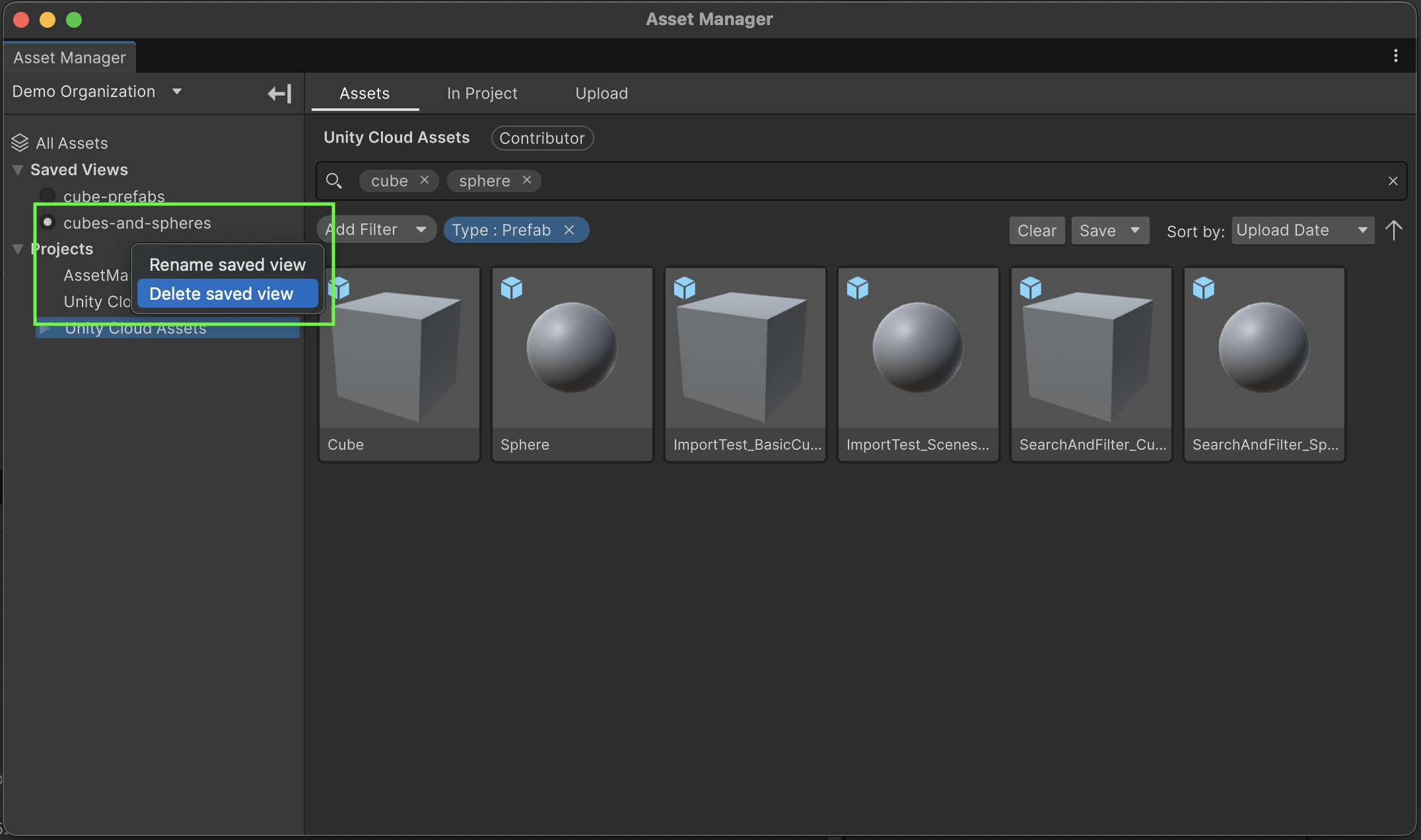
Committing saved views to your Version Control System
Your saved view data is saved to the settings file of your project found under <Your Unity Project Path>/ProjectSettings/Packages/com.unity.asset-manager-for-unity/Settings.json. If you wish to commit your saved views to your version control system, this is the file that should be committed.