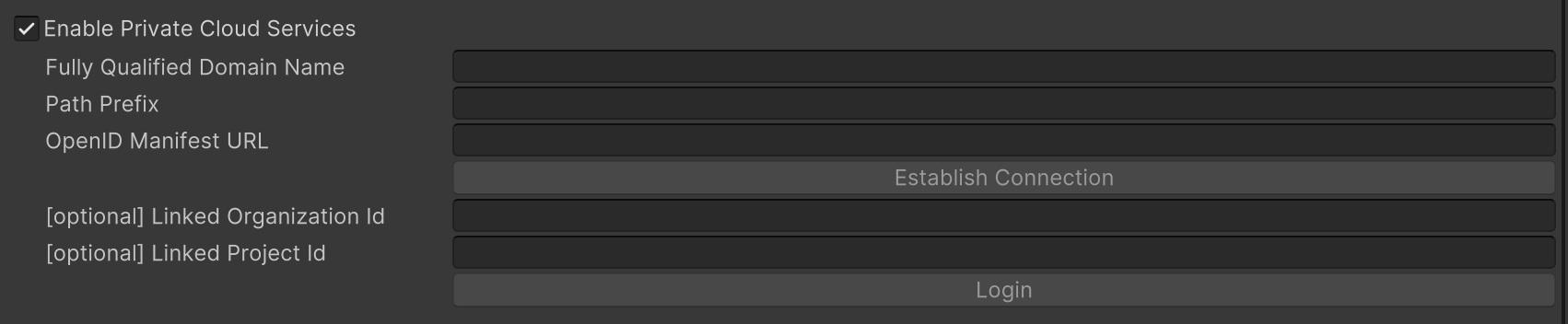
Fully Qualified Domain Name: The fully qualified domain name (FQDN) of your private cloud server. This should not include the protocol (e.g., https://).
Path Prefix: An optional path prefix.
OpenID Manifest URL: The full URL to the public OpenID configuration.
Click Establish Connection to apply the settings.
[Optional] If you have a specific organization identifier and/or project identifier, you can set them in the Organization Id and Project Id fields. If these fields are left empty, the default organization and project will be populated on login.
Click Login to authenticate with the private cloud server.
Once logged in, you can access the Asset Manager window by going to Window > Asset Manager.
How do I disconnect from a Private Cloud Server?
Open Project Settings in Unity.
Navigate to Asset Manager/Private Cloud Services.
Disable Private Cloud Services by unchecking the box. This will disconnect you from the private cloud server.
Once disconnected, you can access the Asset Manager window by going to Window > Asset Manager. The Asset Manager will use your Unity Editor account for authentication and will connect to public cloud services.