Use Ask mode, Plan mode, and Agent mode
Understand how the Ask, Plan, and Agent modes change how Assistant responds to prompts and works in your project.
Assistant supports three interaction modes for different workflows:
- Ask mode provides guidance and analysis without changing your project.
- Plan mode creates structured implementation plans for you to review before Assistant makes changes.
- Agent mode performs actions directly in your project, such as creating objects or modifying assets.
Choose the mode that matches the level of action you want Assistant to take. Use Ask mode for explanations, Plan mode to review larger workflows before implementation, and Agent mode for direct project changes.
Compare Assistant modes
The following table compares the three Assistant modes:
| Feature | Ask mode | Plan mode | Agent mode |
|---|---|---|---|
| Primary purpose | Provide explanations and guidance | Create and review implementation plans | Perform actions in the project |
| Modifies scenes or assets | No | No, until approved | Yes |
| Tool access | Read-only | Read-only during planning | Read and write |
| Saves plans to project | No | Yes | No |
| Requires approval before implementation | Not required for read actions | Yes | Based on permissions |
| Best for | Learning, reviewing | Complex workflows | Direct changes - setup, fixes, and automation |
| Example prompt | How do I create a weapon system? |
Create a weapon system for my game. |
Add a weapon system to my game. |
Ask mode
Use the Ask mode for questions and explanations.
In this mode, Assistant:
- Answers questions in text.
- Suggests code, settings, and best practices.
- Uses read-only tools to inspect your project.
- Doesn't call tools that modify your scene or assets.
The Ask mode doesn't perform write operations, so it doesn't request confirmation to make changes. However, it still respects your read permissions. If read access to a specific operation is blocked in your permission settings, Assistant can't inspect that information.
For example, in the Ask mode:
How should I create a cube for this scene?: Assistant describes the steps or shows example code, but doesn't create the cube.What is a good light intensity for this scene?: Assistant reads the current scene data and suggests settings without changing values.
Plan mode
Use Plan mode when you want Assistant to generate and save a structured implementation plan before it makes changes.
In this mode, Assistant:
- Uses read-only tools to inspect project context.
- Generates a step-by-step implementation plan.
- Lets you review and revise the plan before implementation.
After you approve the plan, Assistant switches to Agent mode and implements the approved steps.
Use the Plan mode for larger tasks that benefit from planning and review, such as creating gameplay systems, building new features, or implementing multi-step workflows.
Agent mode
Use the Agent mode to perform actions in your project. In this mode, Assistant:
- Calls tools that can create, modify, or delete objects.
- Uses your permission settings to decide when to prompt for confirmation.
- Combines reasoning and tool calls to complete multi-step tasks.
For example, in the Agent mode:
Create a cube in my scene.: Assistant calls a tool, such asCreate GameObject, asks for permission if required, and creates the cube.Fix the light intensity in this scene.: Assistant reads the scene data, then calls tools to adjust lights if you grant permission.
The Agent mode still answers questions with text only, especially when no action is required. However, it always has access to a broader set of tools than the Ask mode, and acts when your prompt implies a change.
Switch between modes
To access and change modes:
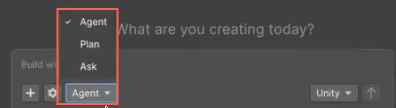
- In the Assistant window, locate the mode selector in the prompt field.
- Select Ask, Plan, or Agent from the menu.
The selected mode applies to your next prompt. You can change modes at any time.