Assistant interface
This section provides a detailed tour of Assistant.
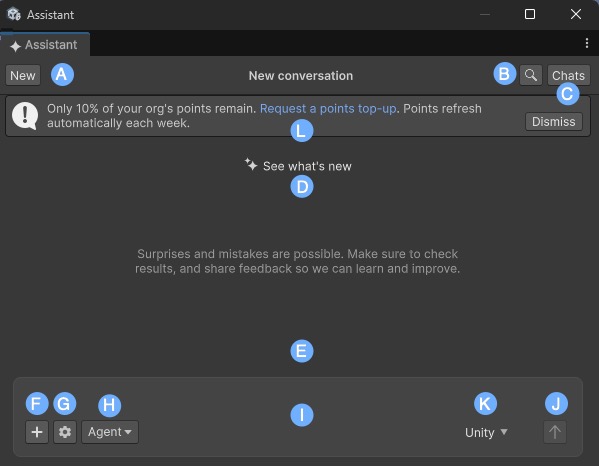
| Component | Description |
|---|---|
| A: New | Start a new conversation with Assistant or reset the current chat context. |
| B: Search (magnifying glass) | Search across the current Assistant conversation to quickly find previous prompts and responses. |
| C: Chats | Refer to your previous interactions within Assistant. Review and reuse previous information without having to retype or recall past conversations. |
| D: See what’s new | Open the latest updates and release highlights for Assistant. |
| E: Conversation area | Displays your prompts, Assistant responses, Reasoning section, and tool results. |
| F: Attach (+) | Attach GameObjects, assets, scripts, Console messages, screenshots, and other supported project data to your prompt. |
| G: Settings menu (gear icon) | Open the prompt settings menu, where you can enable Autorun, enable or disable Collapse Reasoning when complete, view Permission Overrides, open Assistant Settings, or refresh the project overview. |
| H: Mode selector (Ask/Agent) | Change between the Ask mode (read-only guidance) and the Agent mode (actions in your project). |
| I: Text field | Enter your queries. Queries are the primary interaction point for communication with Assistant. By typing in questions, instructions, or topics of interest, you start the conversation and receive relevant responses from Assistant. |
| J: Submit (arrow) | Send your prompts to Assistant. |
| K: Agent selector | Select the active provider or coding agent for the current conversation. When you enable AI Gateway, this menu lists Unity and any configured third-party agents, such as Claude Code, Codex, Gemini, or Cursor. Assistant routes your prompts to the selected agent. |
| L: Low points banner | Display the remaining balance. It appears when your organization is running low on usage points. Select the link in the banner to request a points top-up or Dismiss to hide the banner temporarily. |