Enable tooltips in Play mode
Enable Assistant tooltips in Play mode so you can continue to view contextual guidance while testing your project.
If you're in Play mode and don't find Assistant tooltips, you must enable this setting in Preferences. This ensures that tooltips remain visible during runtime for debugging, testing, and iteration.
To configure this setting, follow these steps:
In the Unity Editor, do one of the following depending on your platform:
Windows: Select Edit > Preferences > General > Enable PlayMode Tooltips.
macOS: Select Unity > Settings > General > Enable PlayMode Tooltips.
Select Enable PlayMode Tooltips.
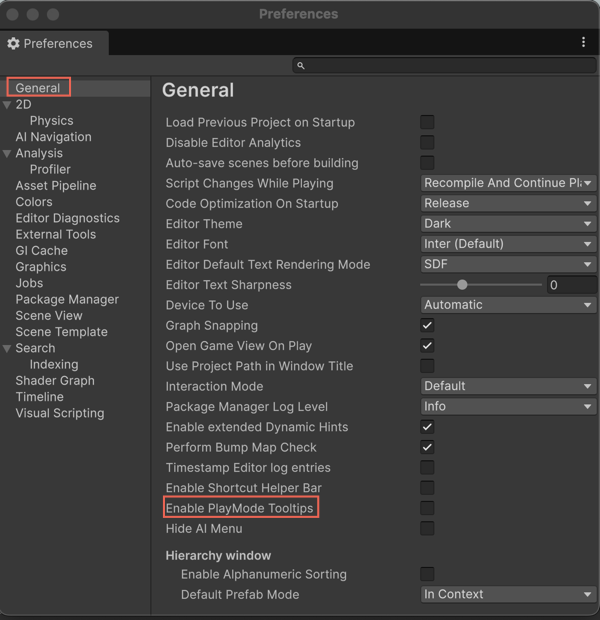
After you enable this option, Assistant tooltips appear even when in Play mode.